The version of PowerGramo you are using is 4.5.0.68.
In this version, we made following major updates:
1. Fully support for Skype 4.x under Vista systems.
2. Adjust audio volumes when export a call record.
3. "Discard" option in "New Record"
window.
4. Improved audio recording quality.
5. Major bug fixed.(Echo problem in previous version)
Important information:
In version 4.4, we made changes to the registration
arithmetic so that old registration code will be invalid
in the new version. If you are a registered user of an older
version, please do registration again. Just click menu "Help
| Retrieve Registration Code" to get a new reg code
and input the code in Step 3 of registration.
Sorry for any inconvenience. (The license key you have purchase
is still valid, and you don't need to buy another one).
Steps to be taken: (*VERY
IMPORTANT*)
For the first time running this version of PowerGramo, you
need to confirm PowerGramo's access to Skype. You may see
a warning message from Skype as shown below:
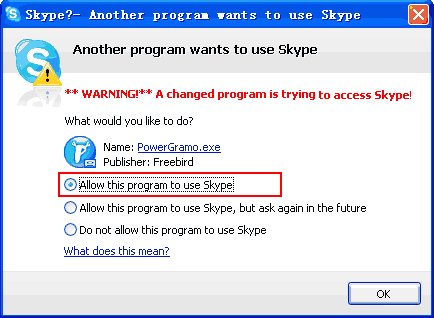
It is asking whether PowerGramo is allowed to access Skype.
Select the "
Allow this program to use Skype"
option as indicated above and click then button "OK".
NOTE: If you
accidentally choose a wrong option, PowerGramo will be unable
to connect to skype, saying "
The
connection request to Skype was rejected.....".
When this happens, please go to Skype's "Options"
window to remove PowerGramo from the blacklist. Generally
you can reach the blacklist by first finding in the Skype
"Options" window a link named "
Manage
other programs' access to Skype" and click the
link. The latest version of skype has this link grouped in
"
Advanced Settings".
New versions of Skype does not show the authorizing window
directly when PowerGramo try to connect. It shows a slip window
near the windows taskbar, as follows:
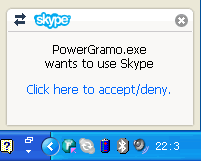
Clicking on the slip window will bring forth the Skype main
window with new events displayed below the menu bar, as the
following image shows:
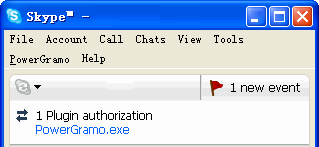
Among the events, click one named
PowerGramo.exe,
the authorizing window will show.
If this is your first time to use PowerGramo, the
first
tour may be helpful for you.
Attention: From version of 2.0.2.35, PowerGramo
saves call records in a sub folder under the recording folder
used by previous versions. So if you upgraded the program
from an lower version, your early records may disappear from
PowerGramo's record list. Please move those old records to
the new recording directory manually, so as PowerGramo can
load them.
We wish you have a pleasant experience with PowerGramo and
hope it be your everyday tool that enrichs your communication
experience and improves your productivity.
Do not hesitate to contact us
if you have any suggestions or questions.