The version of PowerGramo you just installed is 5.0.0.24.
In this version, we made following major updates:
1 . Better user interface.
2 . Option to archive call records to directories other
than the default archiving directory.
3 . Fully compatible with windows vista and windows 7.
4 . Show important records in red text.
5 . Adjustment of the menu bar.
6 . "Pause/continue" button added to "Music
sharing" window.
7 . Improved Offline Audio Recorder.
8 . Major bug fixed.
PowerGramo Enterprise works in conjunction with
PowerGramo
Record Center that enables you to receive call records
via internet from PowerGramo Enterprise, and manage the
call records collectively.
Confirm PowerGramo's access to Skype(*IMPORTANT*)
On finishing installation, for the first time you start
PowerGramo, Skype will ask you if PowerGramo is allowed
to connect with skype. Arrange of skype user interface for
this authorization depends on the version of skype you use.
For skype version 4.x, you will
see a message directly on the main skype window, shown as
the following iamge:

Click the "Allow access" button in the message
window.
For skype version 3.8, the program
does not show the authorizing window directly when PowerGramo
try to connect. It shows a slip window near the windows
taskbar, as follows:
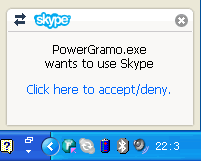
Clicking on the slip window will bring forth the Skype main
window with new events displayed below the menu bar, as
the following image shows:
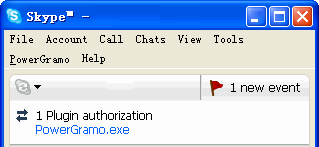
Among the events, click one named
PowerGramo.exe,
the authorizing window will show.
For skype version earlier than 3.8,
you will see a warning message from Skype as shown below:
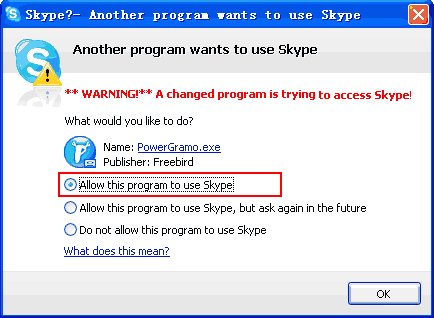
It is asking whether PowerGramo is allowed to access Skype.
Select the "Allow this program to use Skype" option
as indicated above and click then button "OK".
NOTE: If you
accidentally choose a wrong option, PowerGramo will be unable
to connect to skype, saying "
The
connection request to Skype was rejected.....".
When this happen, please go to Skype's "Options"
window to remove PowerGramo from the blacklist. Generally
you can reach the blacklist by first finding in the Skype
"Options" window a link named "
Manage
other programs' access to Skype" and click the
link. The latest version of skype has this link grouped
in "
Advanced Settings".
If this is your first time to use PowerGramo, the
first
tour may be helpful for you.
We wish you have a pleasant experience with PowerGramo and
hope it be your everyday tool that enrichs your communication
experience and improves your productivity.
Do not hesitate to contact us
if you have any suggestions or questions.